

Update, move or start over
Three ways to change your website's design: update the one you have, move to a new design, or start over. What each does, what it costs and what stays.
There are three things you can do about your website's design, and they are not the same. Update and move never change your live site until you press Publish. Start over is the last resort.
Update
Same design.
Your design gets its newest version, with fixes and improvements.
Your edits stay.
Where your own changes and the update touched the same place, you choose what happens.
Preview, then publish.
Nothing goes live until you press Publish.
Your site keeps the look it has, a little better.
Move to a new design
A different design.
Your website is rebuilt in a design you choose.
Your homes and words come with you.
Your listings, team, offices, areas, journal, photos, domain and languages.
Preview, then publish.
Your live site stays as it is until you press Publish.
Your site gets a new look and new page layouts.
Start over is the last resort. It deletes your current website and its live version and builds it again from a design you choose. Your journal posts and content are kept. If you want a new look, move instead: you keep your site and can go back.
Move to a new design
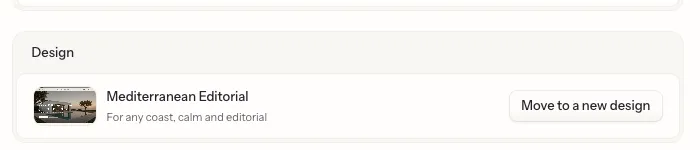
Open Website, then Settings, then Design, and press Move to a new design. You can also start from the banner on Overview that says new designs are ready, or from the line on your Overview that says which design your site uses. Ask Fondaro can offer it too. Only admins can move a website.
1. Design
Pick the design. The one closest to yours is already chosen: Coast for Mediterranean, City for Metropolitan, Country for Heritage. See it live opens the demo in a new tab. See Website designs for pictures of each.
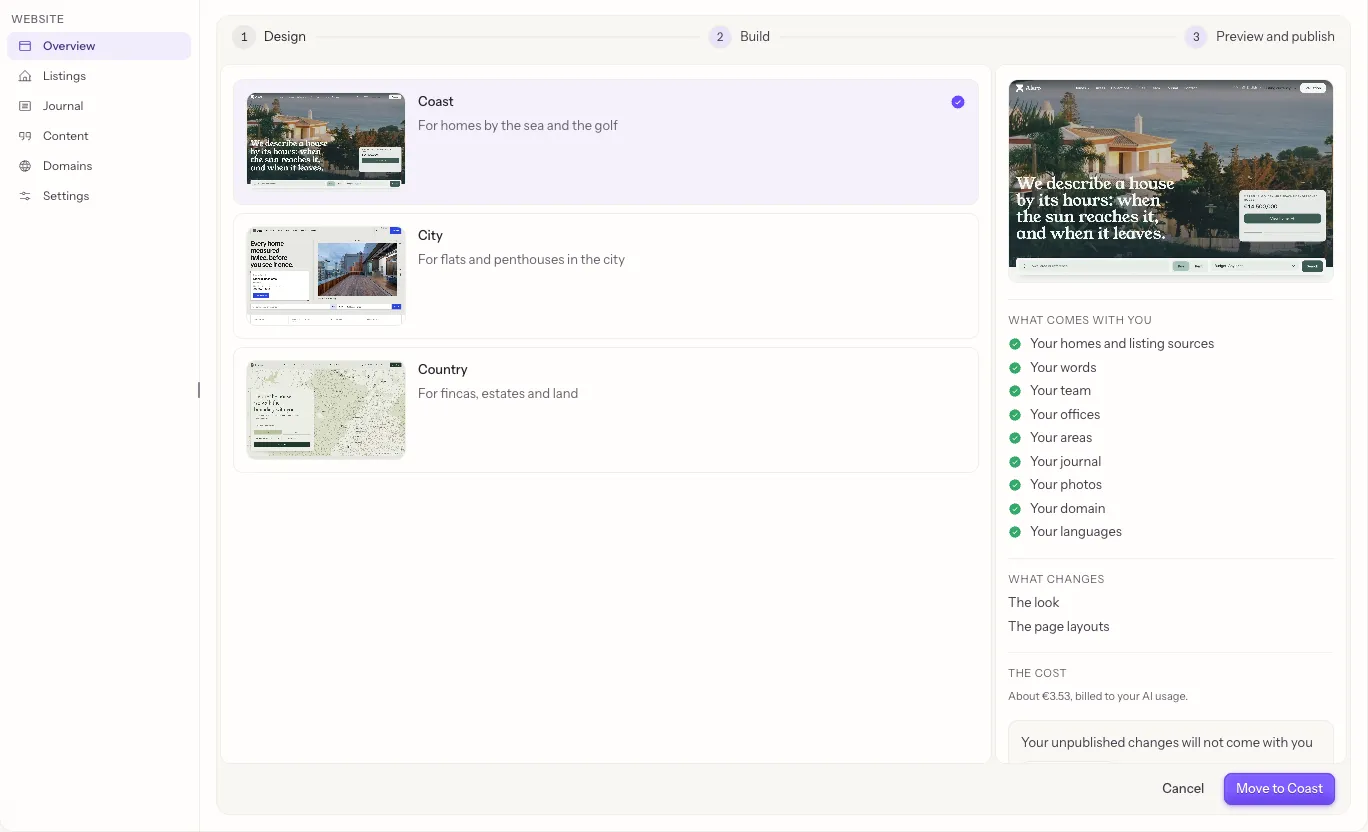
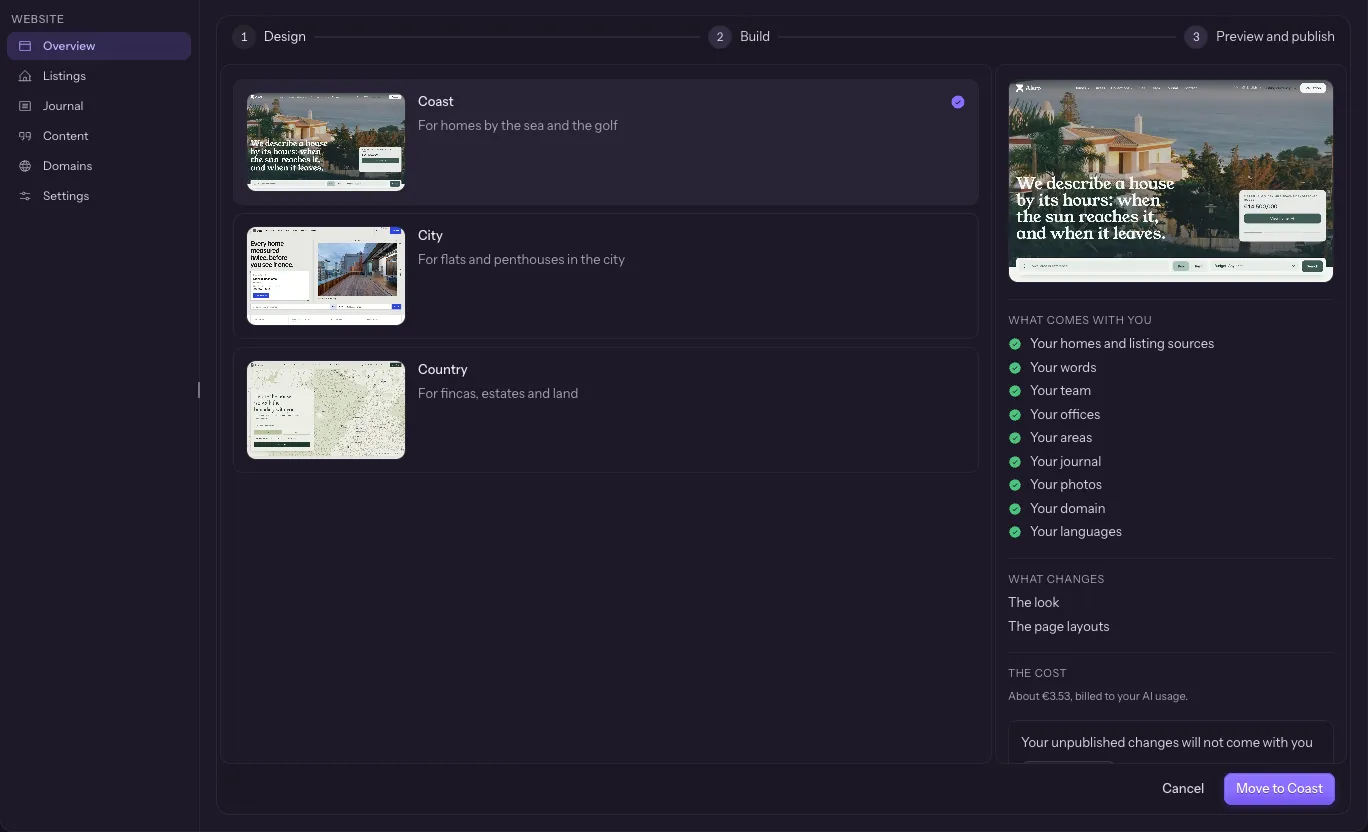
The panel beside the designs shows:
- What comes with you: your homes and listing sources, your words, your team, your offices, your areas, your journal, your photos, your domain and your languages.
- What changes: the look and the page layouts.
- The cost: the price of the build, in your currency.
If your draft has changes you have not published, the step says so: your unpublished changes will not come with you. Press Publish first to put them live before you move, or go on without them.
Press Move to and the design's name to start.
2. Build
Ask Fondaro builds your website in the new design as a draft. It takes a little while, and you can leave the page and come back: the build carries on and the page picks up where it was. Your live site does not change.
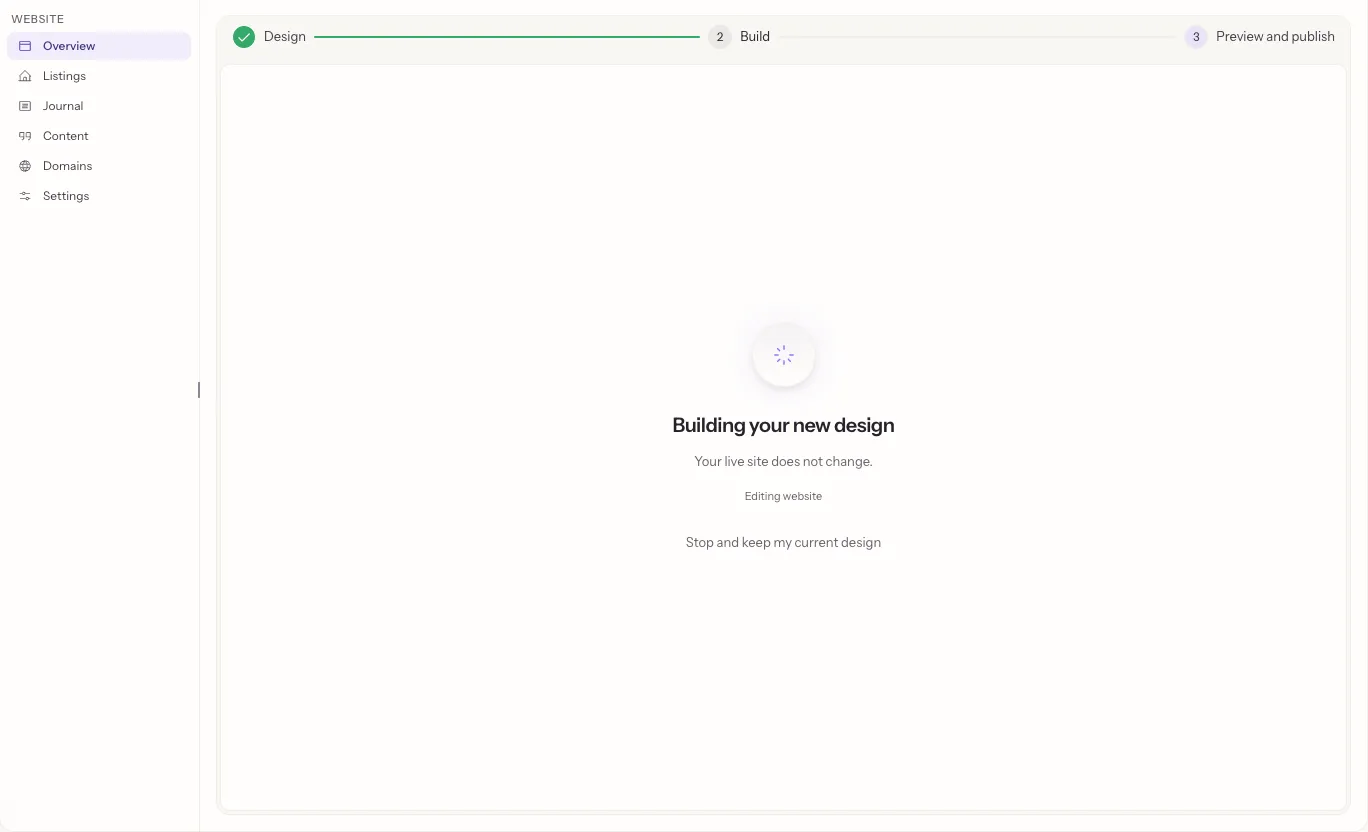
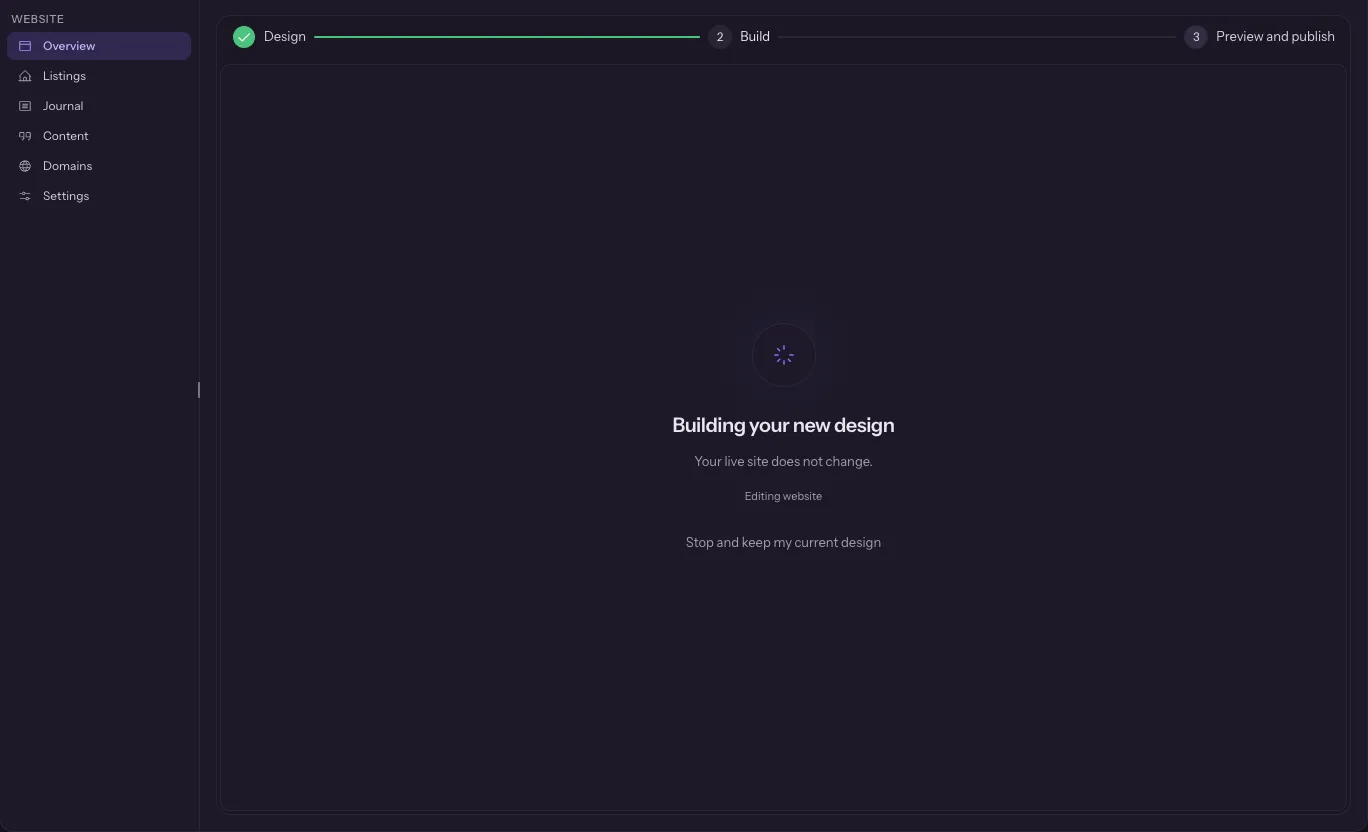
To stop, press Stop and keep my current design. If the build does not finish, the page says why and offers a way forward, and your live site is still online.
3. Preview and publish
When the build is ready, look at it in the preview. The switch above the preview flips between Yours, which is your live site, and New design.
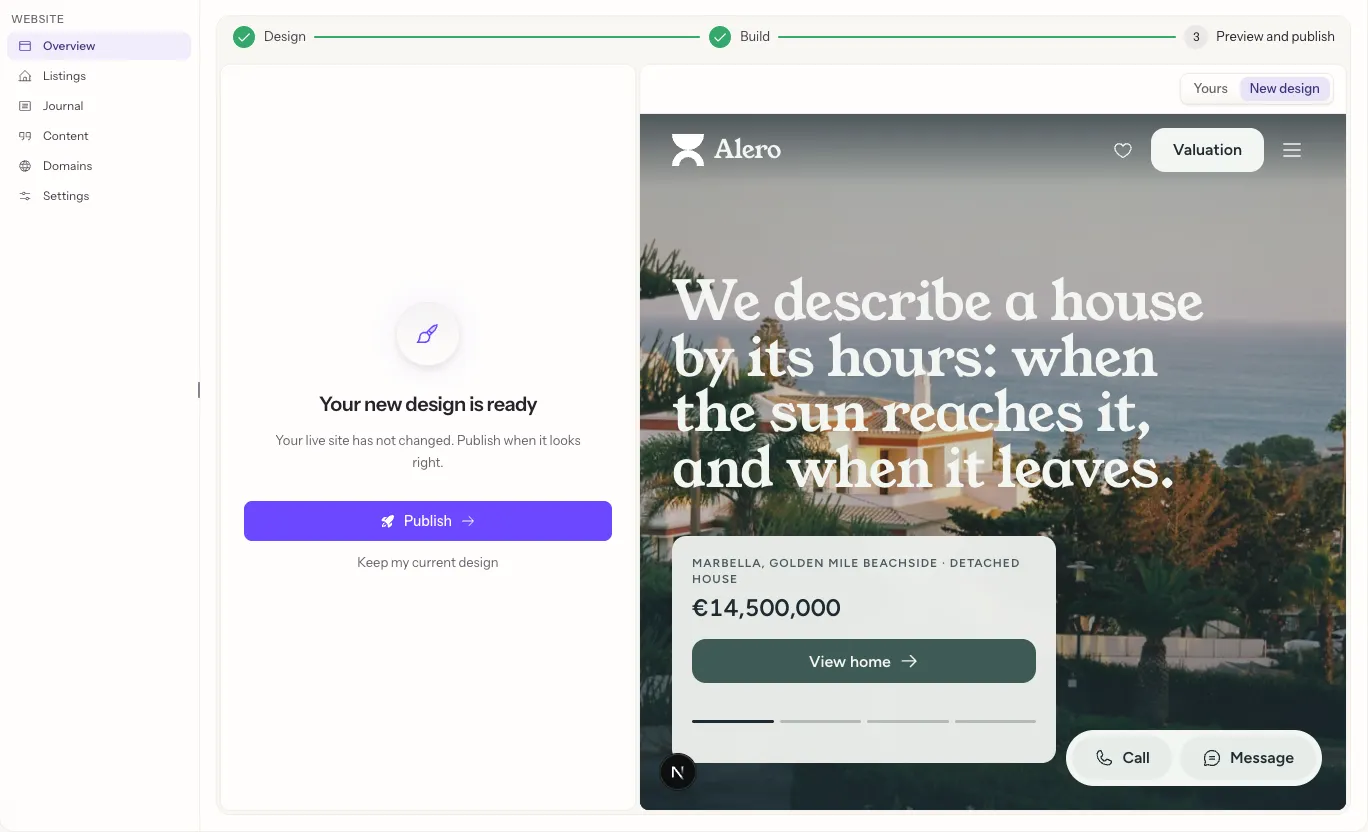
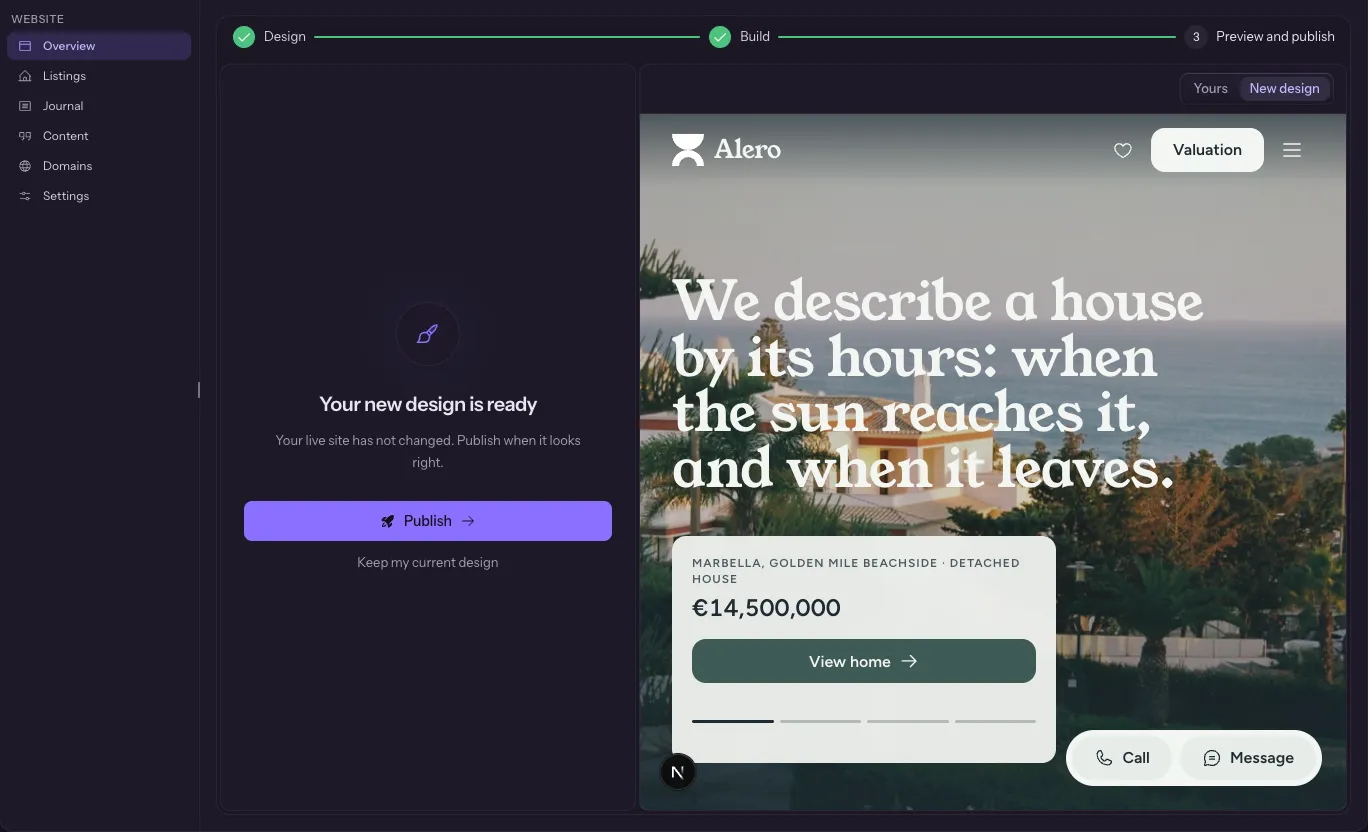
Press Publish to put the new design live. It takes a minute or two, and your current design stays online until the new one is ready. If it does not go live, your previous design is still online and you can try again or press Fix my website.
Press Keep my current design to throw the draft away. Your live site never changed.
Take an update
When your design has a newer version, Overview says so, with an Update button. The steps are on the Website page.
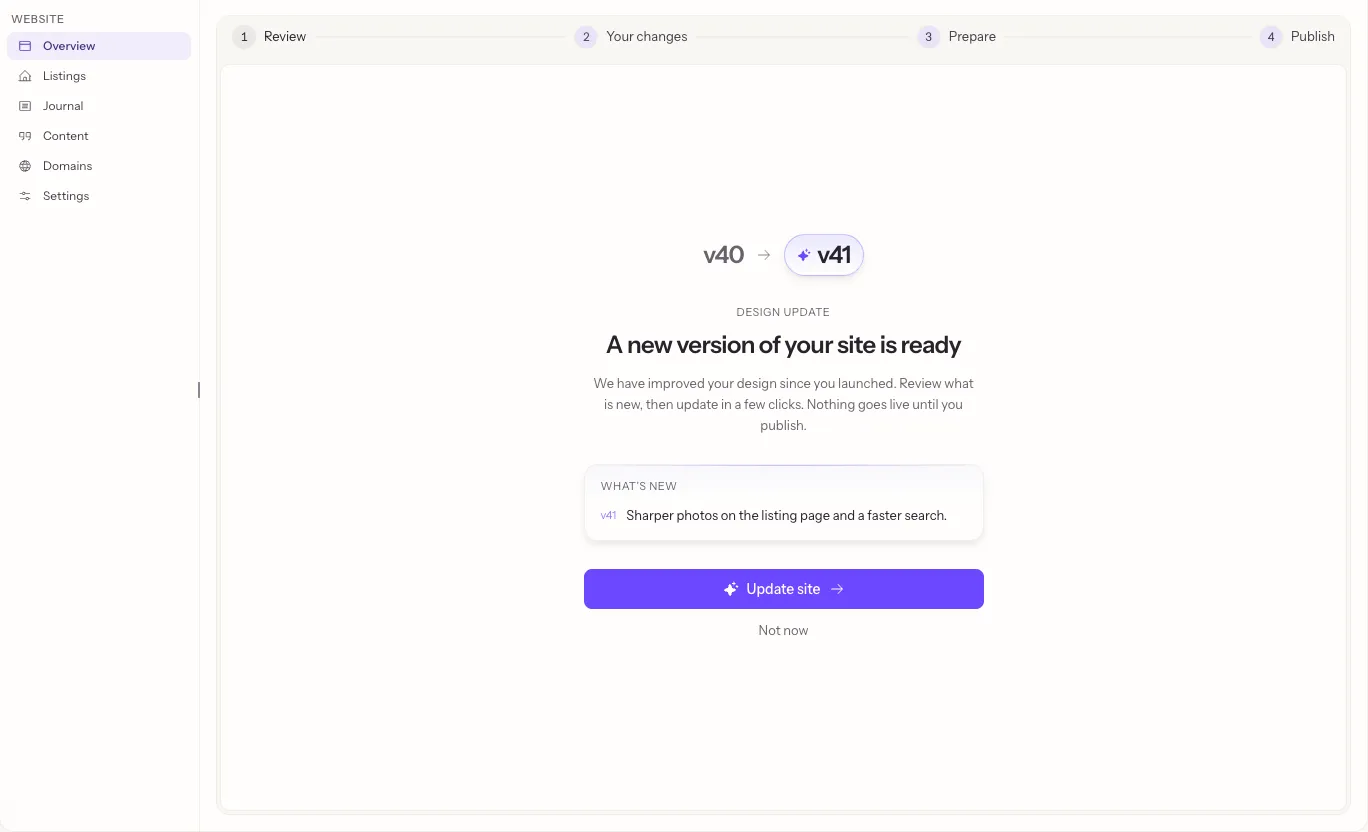
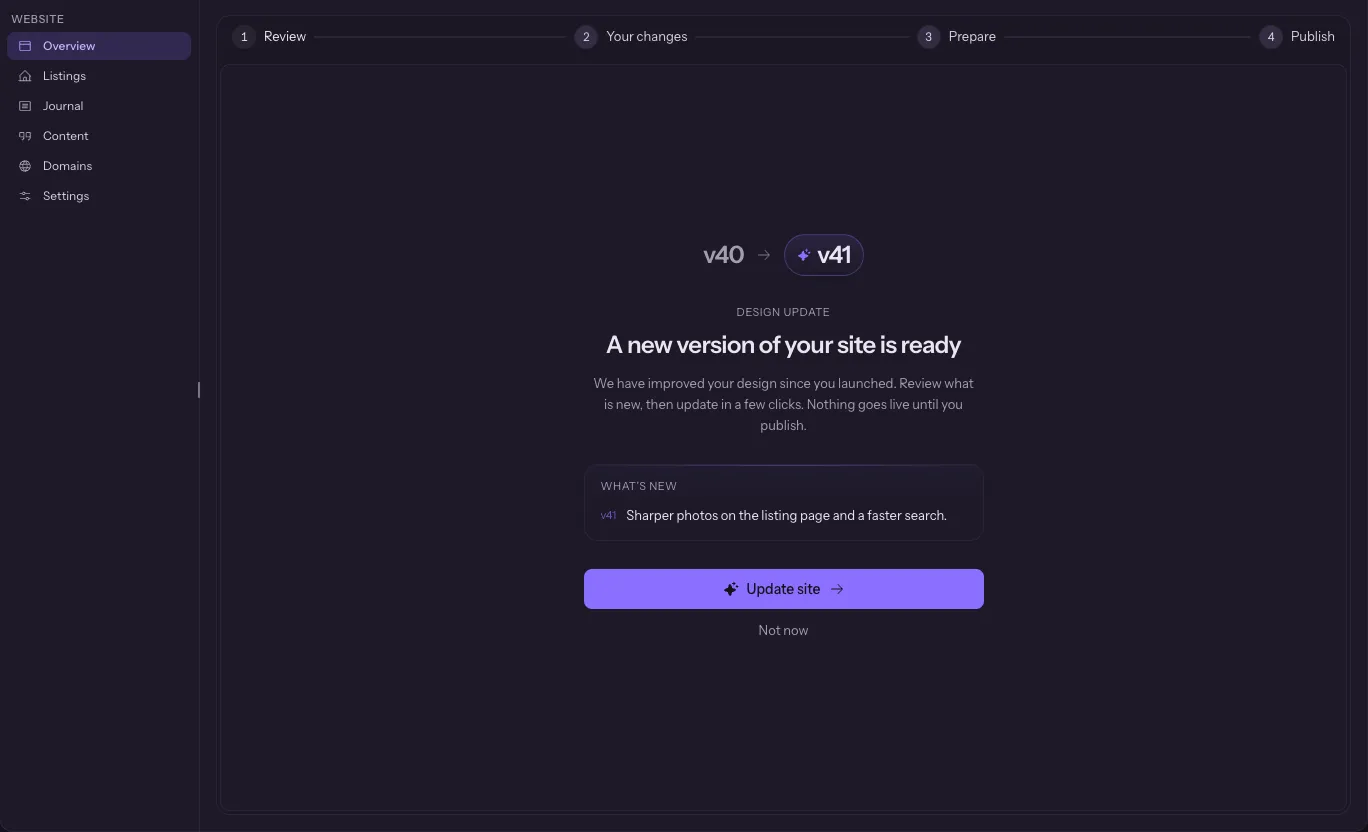
An update also shows the cost of the build before it starts, when the AI combines your edits with it.
Start over
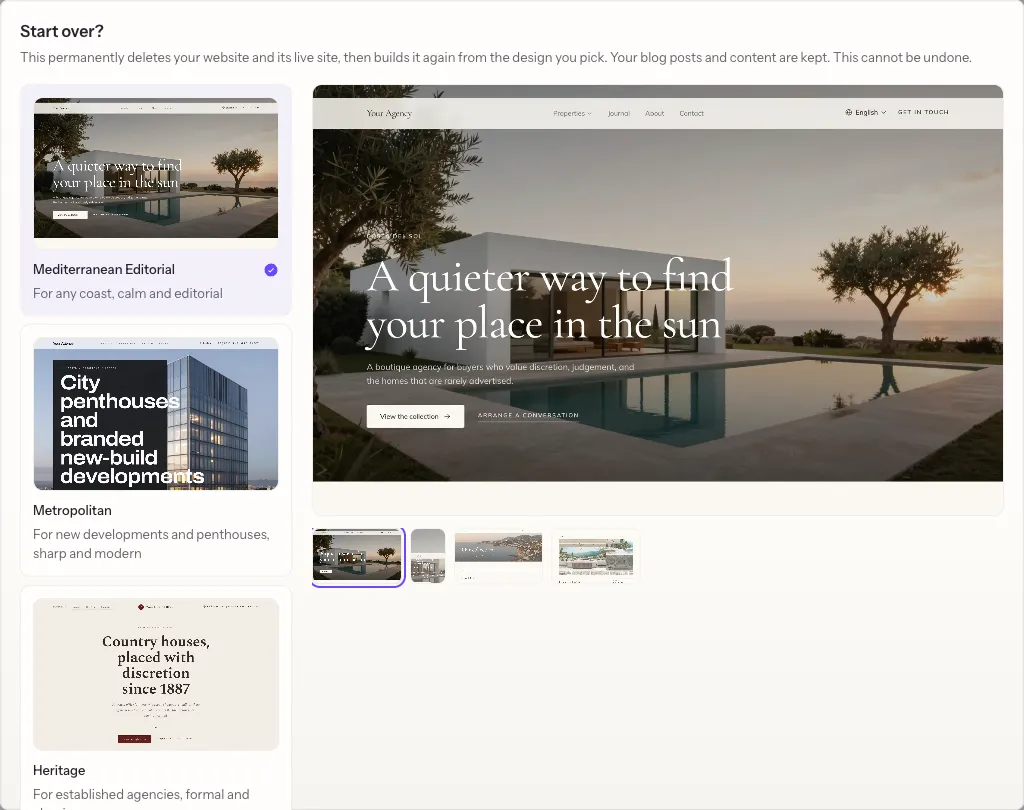
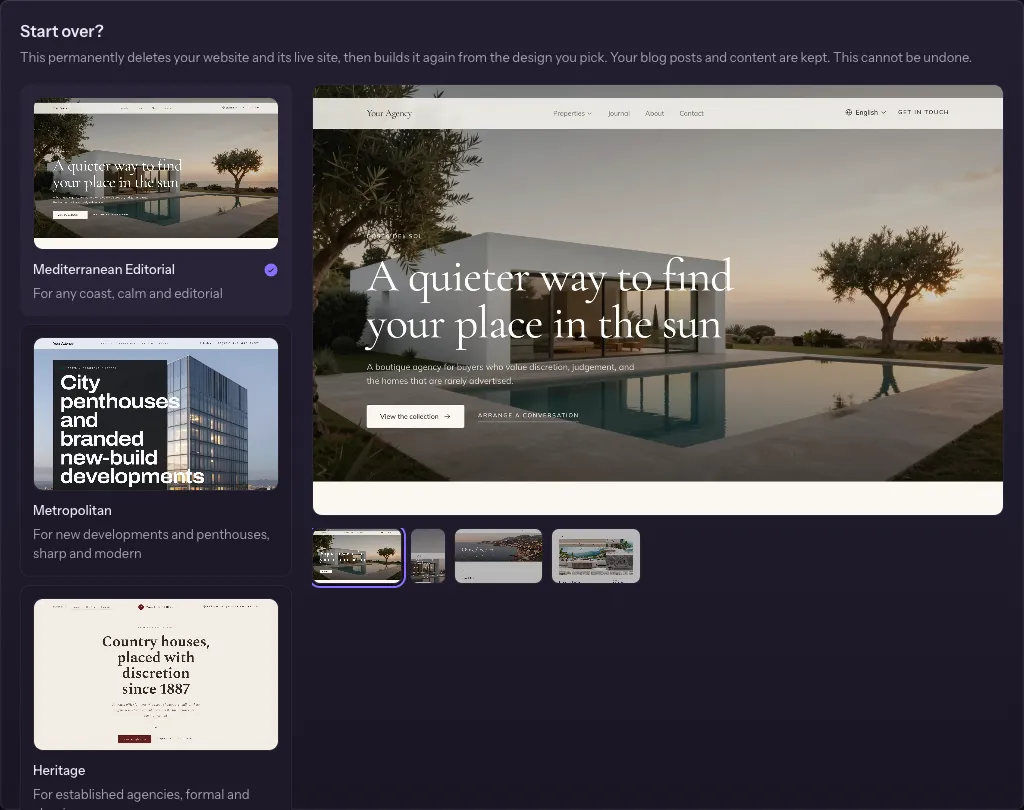
Open Website, then Settings, then Start over. Choose a design, type REBUILD and confirm. It permanently deletes your current website and its live version, and keeps your journal posts and content.
Questions
Will my homes and words come with me?
Yes. Your homes and listing sources, words, team, offices, areas, journal, photos, domain and languages come with you. The look and the page layouts change. Changes you have not published do not come with you, so publish them first if you want them.
Will my site go offline?
No. The new design is built as a draft next to your live site. Your live site changes only when you press Publish, and your current design stays online until the new one is ready.
What does it cost?
One build, shown on the Design step before you start, in your currency. It is billed to your AI usage like any other change Ask Fondaro makes. The design itself is free, like the rest of your website.
Can I go back?
Before you publish, yes: press Keep my current design and nothing changes. Once you publish, the new design is your design.
Do I have to move?
No. Your current design keeps working and keeps getting fixes. Move only when you want the new look.